What Happened to Adobe Dynamic Tag Management (DTM)?

Summary
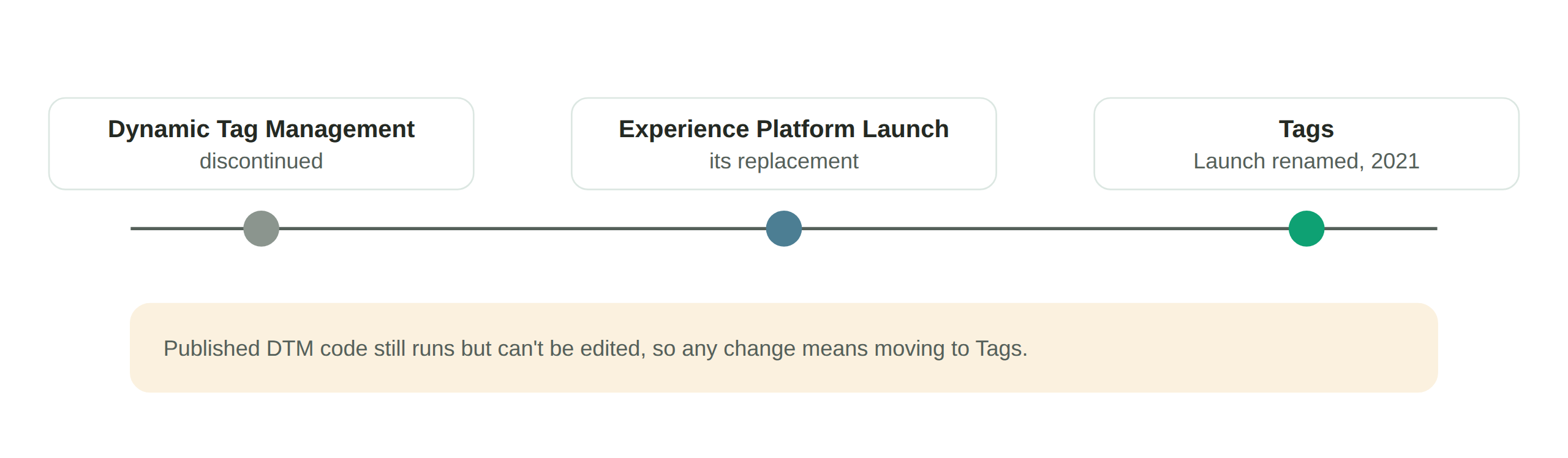
Adobe Dynamic Tag Management (DTM) is discontinued. Adobe replaced it with Adobe Experience Platform Launch, which as of July 2021 is now called Tags, part of Adobe Experience Platform Data Collection. Published DTM code keeps running but can no longer be edited, so any change means moving to Tags. This guide explains what changed and how.
Adobe Dynamic Tag Management was Adobe’s tool for controlling and deploying website tags. Tag management systems are a core part of the data strategy for many online marketers. Adobe has since replaced DTM with Tags (formerly Adobe Experience Platform Launch).
Update (2026): Since this article was first published, Adobe has rebranded Adobe Experience Platform Launch. As of July 2021, the client-side tag-management capability formerly called “Launch” is now simply “Tags,” part of Adobe Experience Platform Data Collection (managed in the Data Collection UI). “Launch Server Side” became Event Forwarding, and edge configurations are now Datastreams. The concepts below still apply. Only the product names and where you manage them have changed.
What was Dynamic Tag Management used for?
Tag management is essential to the operations of many commercial websites. Tags are short pieces of code on web pages that can collect data about users, such as how they landed on a page, a Profile ID or targeting criteria, links clicked, and time spent on the page. For a fuller explanation, see what is a web tag.
When a website runs many tags collecting different data, marketers, developers, and analysts look to software to simplify the process. That is what a tag management system does: a web-based interface to deploy and maintain tags. For more, see our guide to tag management.
Dynamic Tag Management offered simplified control over tag rules and triggers, data elements, and straightforward embedding.
Was Dynamic Tag Management part of Adobe Analytics?
It was a separate tool. Adobe described DTM as free, and said it could deliver any digital marketing service, even on sites that didn’t use Adobe’s own solutions. Its successor, Tags, is offered to Adobe Experience Cloud customers as an included feature. Adobe Analytics is still a current Adobe product.
The successor: Adobe Tags (formerly Launch)
Adobe replaced DTM with Tags (formerly Adobe Experience Platform Launch), which adds new features, including development, staging and production environments that a library moves through before publishing, and support for loading libraries asynchronously. Tags also introduced extensions, which Adobe and outside developers build and customers install from a catalog.
Adobe Tags vs Adobe DTM: what is the difference?
The fundamentals are similar, but many features have been overhauled.
| Area | Adobe DTM | Adobe Tags (formerly Launch) |
|---|---|---|
| Data Elements | Housed under Rules | Own dedicated menu section |
| Rules | Basic rule setup | “If… Then” builder, multiple-event support, action sequencing, exceptions under conditions |
| Extensions | No extension model | Extensions installed from a catalog |
| Environments | No dedicated dev stage | Development, staging and production environments, plus hosts |
| Integration | Limited | Adobe Experience Platform integration, Edge Network, and event forwarding (a paid add-on) |
| Page load | Asynchronous library loading |
Rules. In Tags, Data Elements have their own menu section, where in Adobe DTM they were housed under Rules. The Rules section has been simplified in Tags. You now create a rule as an “If… Then” statement, adding events and conditions that trigger your actions, with exceptions housed under conditions. Tags also added Multiple Event support, so the same action can follow several different events, and Action Sequencing, which controls when actions occur relative to one another.
Properties. Properties are largely unchanged from Adobe DTM to Tags. You set up a company and have a set of web properties sit under it. Libraries within properties can now be loaded asynchronously by adding an “async” attribute to the “script” tag.
Menu. Rules and Data Elements have separate sections in Tags. Hosts are where library builds are delivered, a separate concept from Environments, the development, staging and production stages a library moves through before publishing. The Extensions section lets you browse the catalog, view installed extensions, see updates, and manage configurations.
Data Elements. The Data Elements functionality is very similar to DTM. The one change of note is a storage-length option of “None,” useful for single-page applications because it prevents data-element values from persisting across pages unnecessarily.
Integration. Tags works closely with other Adobe Experience apps, which manage and distribute data together. Unified real-time customer profiles come from Experience Platform’s Real-Time Customer Profile, and Adobe Journey Optimizer orchestrates customer journeys. Adobe has folded its Sensei AI features into Adobe AI.
How do you migrate from Adobe DTM?
Adobe retired DTM in stages: no new properties from July 2019, read-only from February 2021, and the DTM interface shut down in April 2021. Published DTM libraries kept running, but they can no longer be edited, so changes require moving to Tags (formerly Launch). Adobe offered an automated upgrade path. The high-level path:
- Inventory what DTM is doing today. List every rule, data element, and tag DTM currently manages, and what each one sends. This inventory is your reference for a clean migration.
- Rebuild in Adobe Experience Platform Data Collection (Tags). Recreate your properties, data elements, and rules using the If/Then rule builder and the extension catalog, rather than porting JavaScript by hand.
- Map the renamed concepts. Launch is now Tags, Launch Server Side is Event Forwarding, and edge configurations are Datastreams. The concepts carry over, only the names and locations changed.
- Test before and after you switch. A migration is exactly when tags break and data quietly changes. Audit what fires and what each tag sends before you cut over, and again after, so you can confirm nothing was lost or altered in the move.
That last step is where a tag audit earns its place. Comparing what your tags collected on DTM against what they collect on Tags is how you prove the migration did not cost you data. See the tag audit guide and data accuracy for the before-and-after check.
Adobe Tags key features
Tags includes a range of useful features:
- Extensions: a catalogue of extensions, which Adobe and outside developers build to expand what Tags does.
- Rule builder: using events, conditions, exceptions, and actions, you define rules for your tags to follow.
- Enterprise publishing: teams can publish custom code onto web pages. Easy workflows make it straightforward to fit Tags into business practices.
- Data elements: collect and organise data and apply it to business outcomes, then analyse it in other Adobe Experience apps.
What are the benefits of Adobe Tags?
Tags is a strong choice for data analytics teams. For teams already using Adobe Experience Cloud, where Tags is included, it offers benefits that fit the rest of the Adobe platform, especially for larger enterprises with large volumes of data that need to organise their tags.
Accurate data collection. In the wake of new data laws worldwide, Tags offers broader control over beacon calls, cookie management, and consent requirements than Adobe DTM did.
Integration of data and marketing technology. Tags’ integration with Adobe Experience Platform lets data be transformed and distributed in a range of ways, with data collection consolidated into Adobe’s Edge Network. Event forwarding sends Edge Network data to Adobe or non-Adobe destinations server-side, without extra client-side code. It is a paid feature, included with Real-Time CDP Connections, Prime or Ultimate.
Centralised tag management. Once users get used to it, Tags collates data for everyone in a workspace, and its rules functionality makes it easy to manage triggers and actions. This matters at scale, where enterprise tag management across multiple apps and websites often needs conditional deployment. Tags also lets you house different websites under a single enterprise.
How to set up Adobe Tags (formerly Launch)
- Sign in to the Adobe Admin Console with your Adobe ID.
- In the Adobe Admin Console, set up product profiles with the permissions your team needs. For full data collection features, include the Sandboxes, Data Modeling, Identity Management, and Data Collection permission categories, for yourself and any other users in your workspace.
- Log in to either the Experience Platform UI or the Data Collection UI.
- Select Add Property and create a property for your website, or a group of websites that will use the same tags.
- Go to the Extensions tab and install extensions. Much of the foundational functionality of Tags comes from extensions.
- Go to the Data Elements tab and define your data elements.
- Go to the Rules tab and create rules for your tags.
- Go to the Environments tab for your property and install a Development Environment.
- Add a new library in the Publishing tab, assign it to a Development Environment, then begin testing and eventually approving and publishing your builds.
Need help auditing and managing your marketing tags?
Once you have a tag management system running, it is easy to be lulled into a false sense of security. Systems like Adobe Tags offer strong functionality, but plenty can still go wrong: inaccurate and broken tags deliver faulty data that can derail your marketing. This is where a tag management audit is essential. DataTrue offers advanced analysis of the quality of your tag data to help keep it as accurate as possible.
Check your migration before and after you switch
DataTrue tests the tags on your live site and apps, checking what each one fires and what it sends, in each consent state, so you can confirm a DTM-to-Tags migration did not cost you data. See how it works on the web analytics testing page.
Questions
Do I need to migrate off Adobe DTM?
If you want to change anything, yes. Adobe DTM is discontinued. Published DTM libraries still run, but they can no longer be edited, so any change means moving to Tags (formerly Experience Platform Launch). Adobe offered an automated upgrade path.
Does Adobe Dynamic Tag Manager still exist?
No. Adobe Dynamic Tag Manager has been discontinued and replaced by Adobe Experience Platform Launch, now called Tags. Published DTM libraries still run, but they can no longer be edited.
Can you manage multiple sites with the same Adobe Tags account?
Yes, you can manage multiple domains in the same account.
Do you need coding knowledge to use Adobe Tags?
It is difficult to use without basic JavaScript knowledge. Adobe publishes extensive process documents to help newer users get the hang of it.
What is the Adobe Experience Manager (AEM) Platform?
Adobe Experience Manager is a separate suite for content management. It supports the creation, management, and delivery of digital content and media, and is distinct from Adobe’s tag-management tools.
Know what your tags send, page by page
DataTrue runs real journeys on your site and checks each tag’s data against what you expect, field by field. A missing event or a wrong value shows up in a test before it reaches a report.
- Every page, with coverage scans
- Scheduled runs, with alerts when a result changes
- Full journeys, like checkout and signup, in each consent state
- What each tag sent, field by field
- PII detection with test personas
- iOS and Android app testing
- Pre-publish testing for GTM and Adobe Tags
- REST API, plus Slack and Jira alerts
The full platform, every feature, free for 30 days.