How to Set Up GA4 Event Tracking
Summary
GA4 event tracking is how you record specific user interactions, such as clicks, form submits, and purchases, in Google Analytics 4. You set it up by defining events and their parameters with the Google tag (gtag.js) or Google Tag Manager, firing them from your data layer, then previewing to confirm each event sends the right data.
Event tracking is one of the most important parts of any analytics setup. By understanding how customers interact with your website, you can support better user journeys and improve conversion rates. Google Analytics 4 uses a different event model from Universal Analytics, so this guide walks through everything you need to set it up, with and without a data layer.
The guide covers setup with a data layer and without one, how to see your events in GA4, and how event tracking relates to data privacy. The last section shows how to confirm your events fire correctly.
How does event tracking work in GA4?
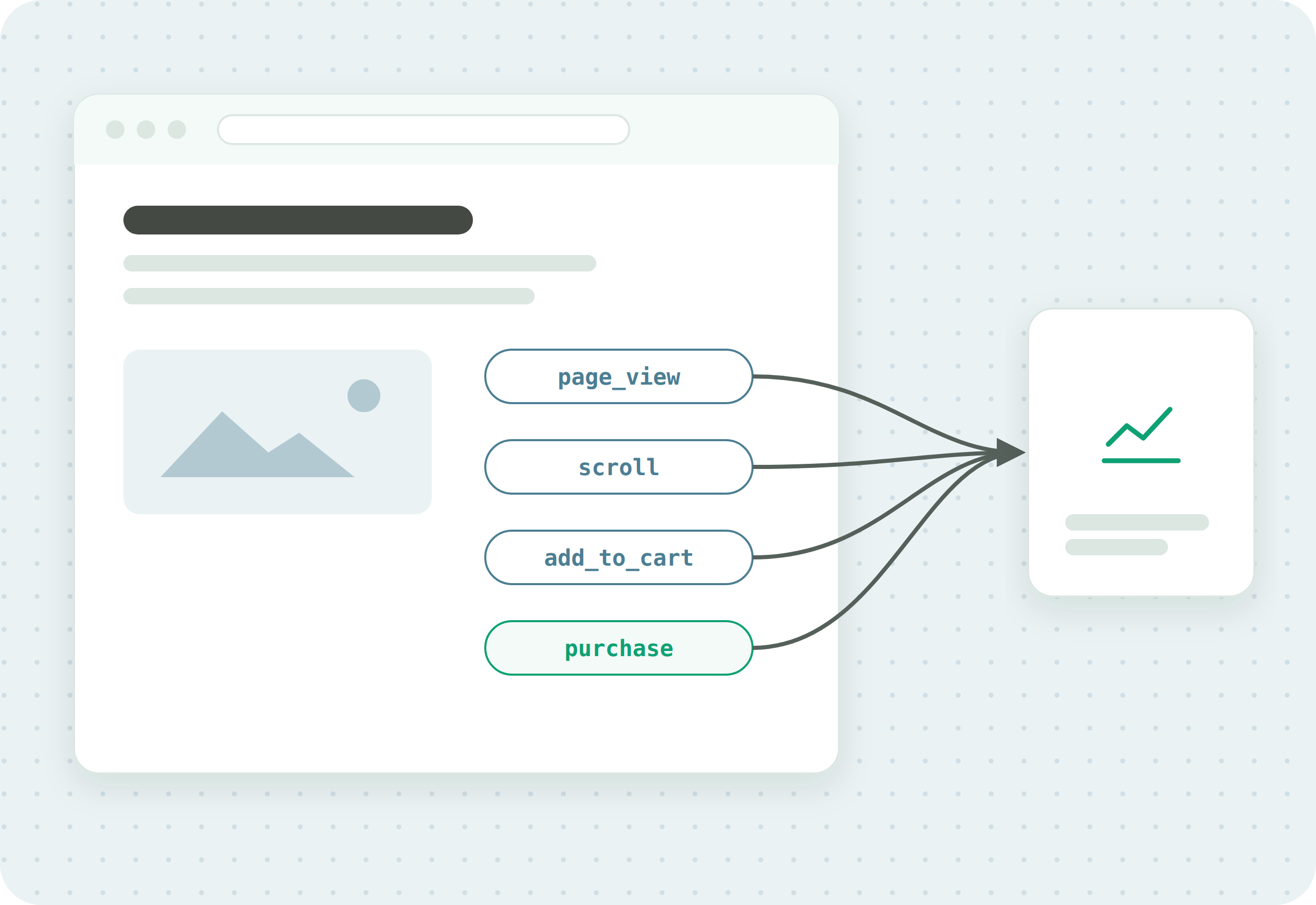
Event tracking in GA4 works by adding tags to your website that record user interactions on each page. How much data you capture, and in what detail, depends on how your data layer and individual tags are set up.
You can send GA4 events with the Google tag (gtag.js) or with Google Tag Manager. Tag Manager makes changes easier without editing site code, and the steps below use it. Before you set up event tracking in GTM, complete the initial integration between GA4 and your container.
Your data layer is another important element. A data layer gives you a single source of data used across your tech stack, which increases accuracy and flexibility between your applications. For more, see our complete guide to configuring your data layer.
What are the types of events in GA4?
There are four categories of events in GA4. Two are collected without extra code (enhanced measurement events when enhanced measurement is enabled), and two must be implemented.
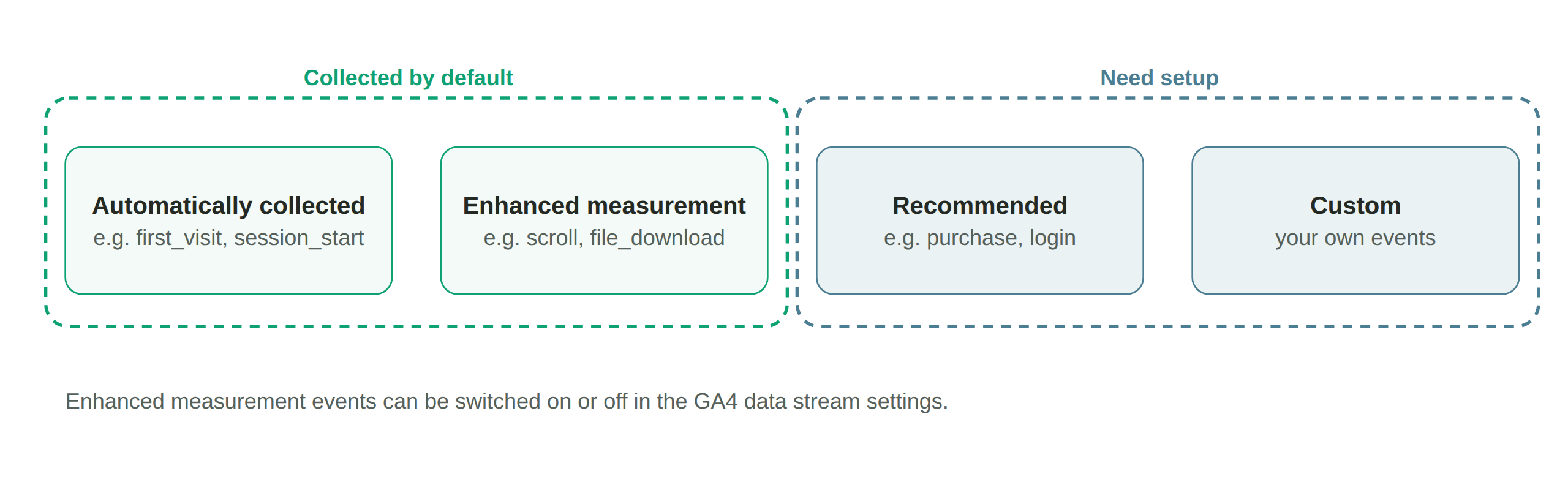
Automatically collected events are tracked once the initial GA4 setup is done, with no extra steps. There are many of them, so a lot of users meet their needs without custom events. Examples on websites: session_start, first_visit, user_engagement. (ad_click and ad_impression are app events.)
Enhanced measurement events are collected when enhanced measurement is enabled on your web data stream. On websites they are page_view, scroll, outbound click, form_submit, file_download and view_search_results. To turn them on or off: in the sidebar press Admin, under “Data collection and modification” click Data streams, click the desired data stream, then under enhanced measurement slide the switch to On to enable all options, or click the Settings symbol to select individual ones.
Recommended events must be implemented specifically, but because they are commonplace they have predefined names and parameters in GA4, so they are easier to add with the right context. Google publishes the full list. Examples: generate_lead, login, purchase, add_payment_info, add_shipping_info.
Custom events you create and implement yourself. Only create a custom event where no other type suits your purpose, because they take more effort and leave more room for error, and they do not appear in most standard GA4 reports, so you have to build custom reports to analyse them.
How to set up GA4 event tracking with a data layer
Setting up events with a data layer in use lets you create events and triggers that rely on data layer variables. This simplifies the process and keeps all your tags drawing on a single source of data. These steps use Google Tag Manager.
- Create a GA4 event tag. In Google Tag Manager, click Tags, then New, and name your event.
- Configure the tag. Select Google Analytics: GA4 event. Enter your GA4 Measurement ID and the event name (a recommended event name for predefined parameters, or a descriptive name for a custom event). In Event Parameters, add each parameter with a name on the left (such as
product_idorform_name) and the matching data layer variable on the right. - Create your trigger. In the event tag, click Triggering, click the plus symbol to add a trigger, name it, and in the event name field enter the data layer event that should fire the tag. Save.
- Preview and debug. Click Preview, go to a page where you can trigger the event, and confirm in the GTM preview pane that the correct event data is captured and sent to GA4 at the right time.
- Publish. Exit preview, click Submit, add a version name and description, and click Publish.
How to set up GA4 event tracking without a data layer
Without a data layer, you enter the parameters you want to track manually and go through a longer trigger setup. It is still perfectly possible.
- Create a GA4 event tag. In Google Tag Manager, click Tags, then New, and name your event.
- Configure the tag. Select Google Analytics: GA4 event, enter your Measurement ID and event name, then in Event Parameters enter the parameters manually. Use Google’s predefined parameters (such as currency, value and discount) or create custom ones by typing a name and a static or dynamic value. Without a data layer, you can pass dynamic values with JavaScript variables or built-in GTM variables such as Page URL and Click Text.
- Create your trigger. In the event tag, click Triggering, add a trigger, name it, click Trigger Configuration, and set the trigger type to the interaction you want. For Page View triggers, choose All Page Views, or choose Some Page Views and set conditions on Page URL, Page Path, or Page Title using rules like “contains” and “equals.”
- Preview and debug. Click Preview, trigger the events on your site, and confirm the correct data is captured and sent to GA4.
- Publish. Exit preview, click Submit, add a version name and description, and click Publish.
How do you see your events in GA4?
Your events and their parameters appear in the Realtime and DebugView reports, which show data as events fire. The Events tab shows data about all tracked events on your site, and you can add event data to custom reports to understand how customers use your site. To confirm the right event data is captured before you rely on it, see data accuracy and run a tag audit.
GA4 event tracking and data privacy
Google’s own policies prohibit sending personally identifiable information (PII), such as email addresses or phone numbers, to Google Analytics, so event tracking has to be set up to keep it out. A misconfigured tag or parameter can still send it. Whether a given setup is compliant with the GDPR, the CCPA, or other laws depends on the data involved, your configuration, and the jurisdiction, which is a compliance question rather than a setup one. For that, see the Privacy & Compliance resources.
Use DataTrue to manage your tags and data layer
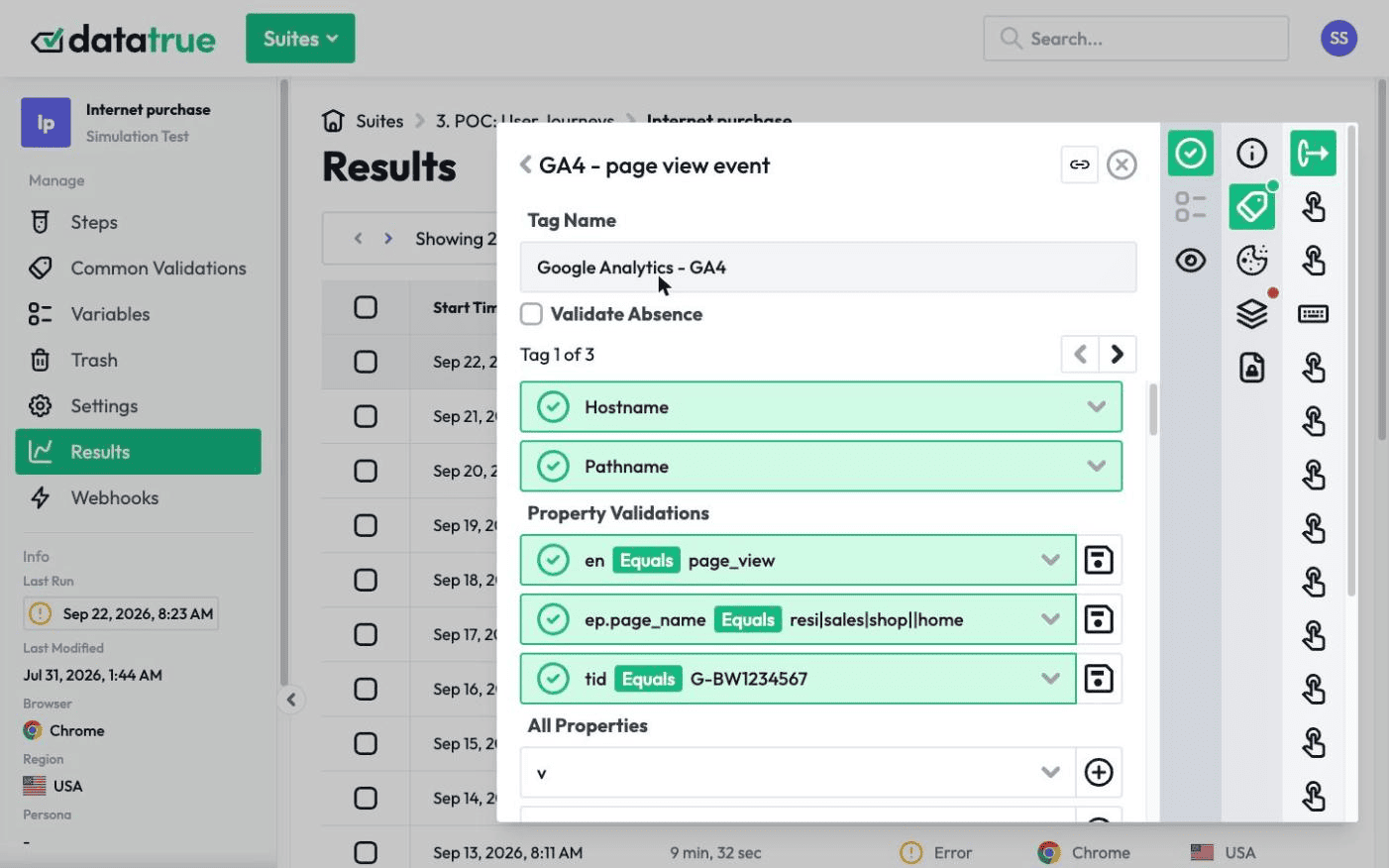
Setting up GA4 and GTM to track events can seem straightforward, but plenty can go wrong. DataTrue helps keep the data you collect accurate. It includes automated data layer testing for ongoing quality control, so the variables your tags rely on stay accurate, and a tag audit toolset for the overall health of your tags, with simulation tests, coverage tests, and validation maps. This guide pairs well with our GA4 ecommerce setup guide, and DataTrue’s data layer testing covers the ongoing checks.
Confirm your events fire correctly
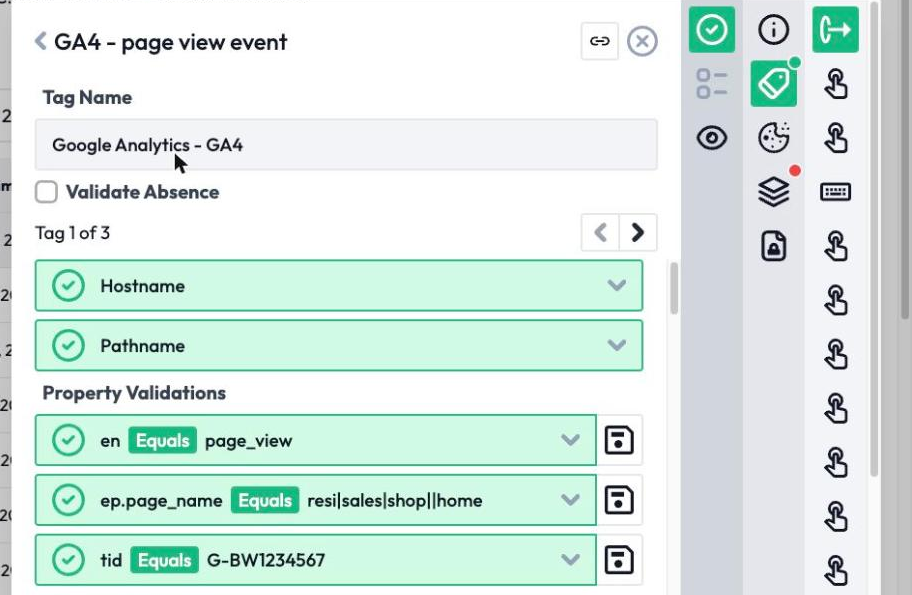
DataTrue tests the events on your live site and apps, checking each one fires with the right values, in each consent state. See how it works on the web analytics testing page.
Questions
What is GA4 event tracking?
GA4 event tracking records specific user interactions, such as clicks, form submits, and purchases, in Google Analytics 4. You define events and their parameters with the Google tag (gtag.js) or Google Tag Manager, fire them from your data layer or manual variables, and confirm each event sends the right data.
What are the four types of GA4 events?
Automatically collected events, enhanced measurement events, recommended events, and custom events. The first two are collected without extra code (enhanced measurement events when it is enabled), recommended events use predefined names and parameters, and custom events you build yourself.
Do you need Google Tag Manager for GA4 events?
No. You can send GA4 events with the Google tag (gtag.js) or with Google Tag Manager. Tag Manager lets you configure event tags, parameters, and triggers without editing site code each time.
Do you need a data layer for GA4 event tracking?
No, but it helps. A data layer lets your events and triggers rely on a single, consistent source of data, which improves accuracy and is easier to maintain. Without one, you enter parameters manually and set up triggers with a longer process.
How do you check a GA4 event is firing correctly?
Preview in GTM and watch the Realtime and DebugView reports as you trigger the event, then confirm the values match what you expect. For ongoing assurance, automated testing checks each event fires with the right data on every key page.
Know what your tags send, page by page
DataTrue runs real journeys on your site and checks each tag’s data against what you expect, field by field. A missing event or a wrong value shows up in a test before it reaches a report.
- Every page, with coverage scans
- Scheduled runs, with alerts when a result changes
- Full journeys, like checkout and signup, in each consent state
- What each tag sent, field by field
- PII detection with test personas
- iOS and Android app testing
- Pre-publish testing for GTM and Adobe Tags
- REST API, plus Slack and Jira alerts
The full platform, every feature, free for 30 days.