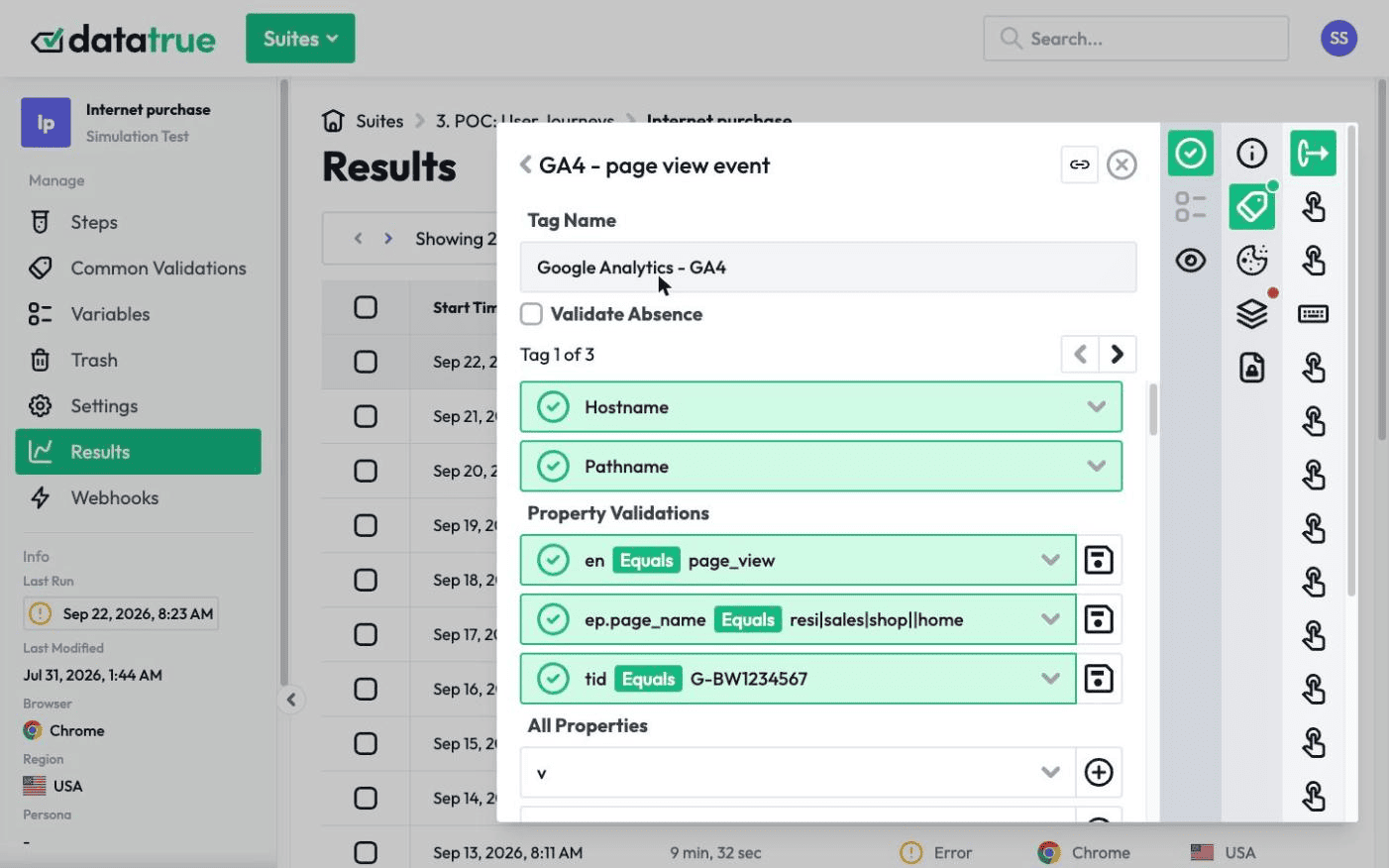
What Is a Data Layer?
Summary
A data layer is a JavaScript object on a web page that collects, stores, and passes data in a standardised way, so all your tags and analytics tools read from one consistent source instead of scraping the page. A well-structured data layer is what makes your tag data accurate and easier to maintain as your tools change.
Data layers can be one of the more confounding parts of analytics tracking, with plenty of background to understand before you can make proper use of them. This guide gives you what you need to understand data layers and the role they play in your tracking. It is a good starting point for using data layers in your tag management system and analytics tools.
The later sections show what a data layer looks like, how it works with tag management and Google Tag Manager, and how to check the data layer on your own site.
What is a data layer?
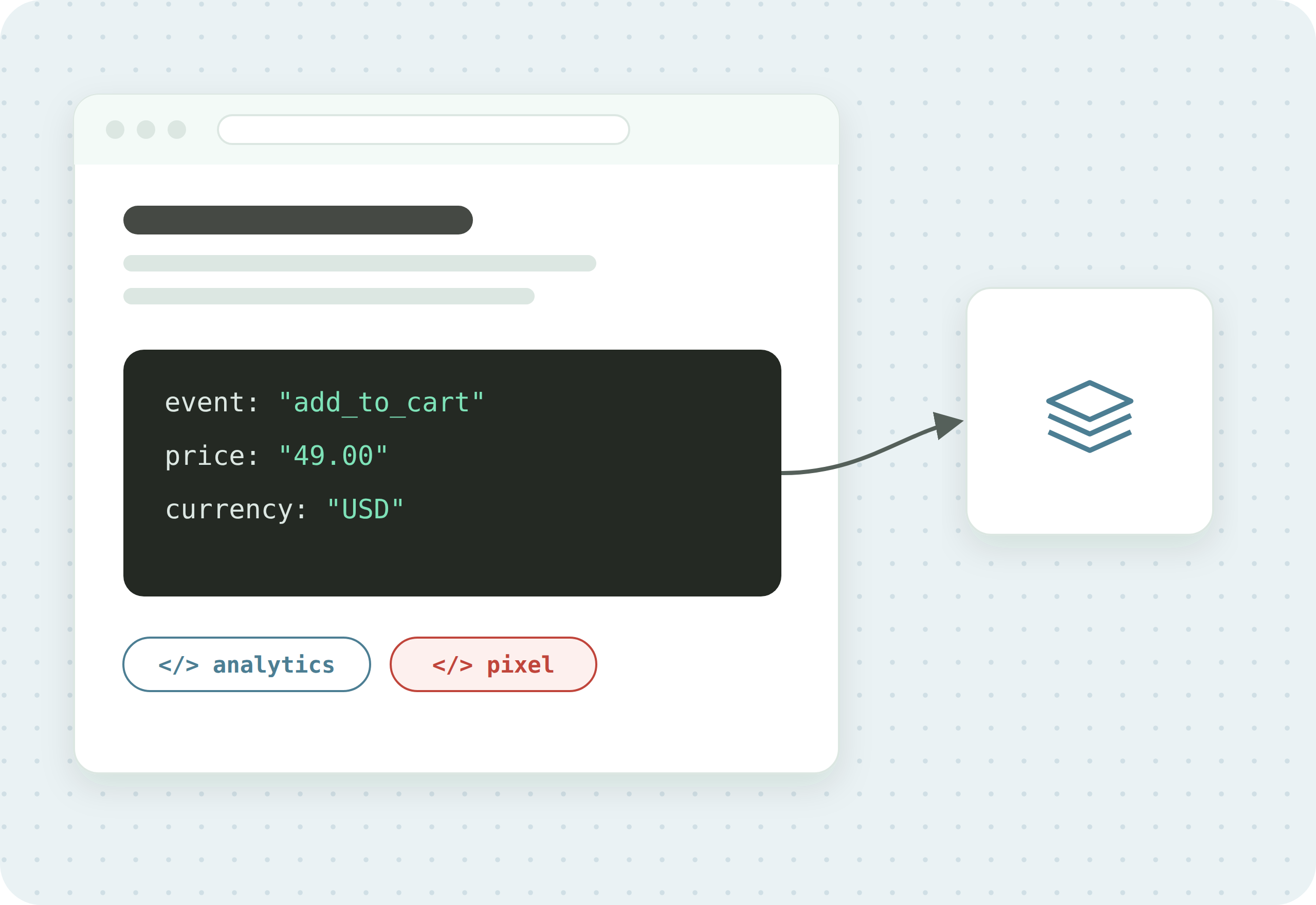
A data layer is a JavaScript universal data object used to collect, store, and pass data on a website in a standardised way. It acts as a master resource for the data on your site. Rather than connecting every tool to various data sources, you connect them all to your data layer, so they draw from the same source and use the same information. As your analytics tech stack grows, the correct setup of your data layer becomes essential to getting real value from your analytics.
Website layers explained
It helps to place the data layer alongside the other layers of a website. Virtually every site has two:
- Front-end: also called the presentation layer or client side, this is everything users see and interact with, such as forms, buttons, animations, and menus, usually built with HTML and CSS.
- Back-end: also called the application layer or server side, this focuses on how the site functions on the server.
A third layer, found on many sites but not all, is the data layer. It takes the job of collecting data off the other layers and dedicates itself to that task. You can make one of the other layers double as the data layer, but that causes problems. For instance, using the front end as the data layer means a design change can break your data if it is tied to a feature that changed. A dedicated data layer avoids that, keeping your data structure uniform and simple.
What are the benefits of a data layer?
Adding a data layer can cause some headaches, but there are good reasons to do it:
- Single source of data. For any site handling large, complex data, working from one source is essential, because it allows greater accuracy and flexibility.
- Integration between applications. Data layers make it simpler to connect any application that needs data from your site, by acting as the single source of primary data. Without one, you may spend hours making sure each application uses the same correct data.
- Easier quality assurance. A single source of data makes it much easier to check your data for errors or gaps, so you can move forward with confidence.
What does a data layer look like?
Here is an illustrative example of a data layer, with placeholder values:
[ { "gtm.start": 1700000000000, "event": "gtm.js", "gtm.uniqueEventId": 1 }, { "pageType": "product", "productName": "Camo Hoodie" }, { "event": "consent_updated", "consentAnalytics": "granted", "gtm.uniqueEventId": 2 }, { "event": "gtm.dom", "gtm.uniqueEventId": 3 }, { "event": "gtm.load", "gtm.uniqueEventId": 4 } ]Data layer code is fairly simple. A major part of it is key/value pairs. Keys represent categories of data, and the value is the input. A streaming site might have keys for a film’s title, genre, and director, with values like “Citizen Kane,” “Drama,” and “Orson Welles.” With that in place, all relevant applications have the same data to draw from.
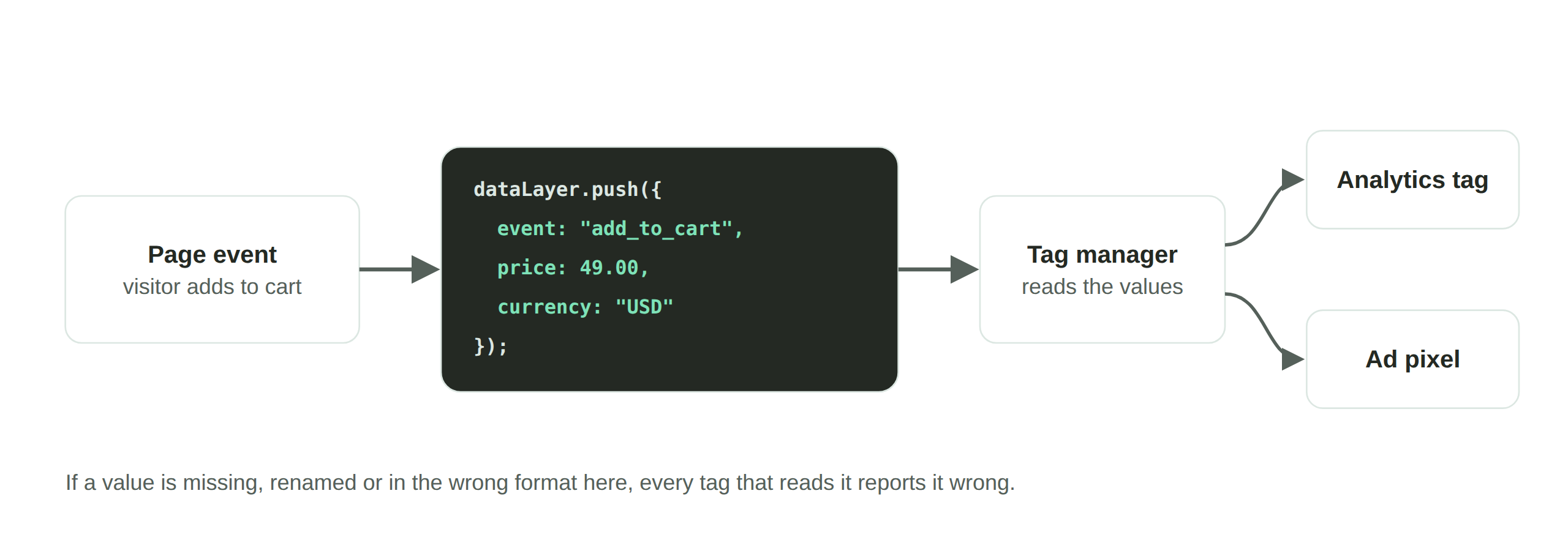
Another common feature is events. Including events in your data layer makes it easier to set up triggers on your tags, because an event indicates when a specific action, such as a button press, should fire a tag. For example, you might name events add_to_cart or purchase, which match GA4’s recommended event names, or use your own names such as formSubmit and buttonClick.
Data layers for tag management
How does a data layer affect tag management? First, google’s instructions say to set up the data layer above the Tag Manager snippet. The snippet itself starts an empty dataLayer if none exists, but only your site can push custom values into it. To use custom data, you add information to the data layer, primarily through the dataLayer.push() command:
dataLayer.push({ "event": "event_name" });Once keys and values are in the data layer, they can be stored in variables, which your tag management system can then use easily. This command also adds event information, telling your tags when to fire.
How to use a data layer in Google Tag Manager
With the basics covered, here are the steps to implement and use a data layer in GTM.
1. Add data layer code to your web page. For reliability and uniformity, implement the data layer on every page, for example by adding the code to header files or shared templates. For GTM, the base code can be as simple as:
<script> window.dataLayer = window.dataLayer || []; </script>2. Add information to the data layer. The common way is dataLayer.push(). First decide your keys, or data categories, for example page information (pageType, pageTitle, pageCategory), user information (userId, userType, userStatus), ecommerce transactions (transactionId, transactionTotal, transactionProducts), or geographic data (userCountry, userRegion, userCity). Then include the value of each key:
dataLayer.push({ pageType: "homepage" });You can add custom event data in the same push to make triggering smoother later:
dataLayer.push({ pageType: "homepage", custom: "abcdef" });3. Set up your data layer variable. Normal GTM variables cannot store custom data from the data layer, so you create data layer variables: click Variables, under User-Defined Variables click New, click Variable Configuration and select Data Layer Variable, enter the key exactly as written in the code in the Data Layer Variable Name field, set the Data Layer Version (Version 2 reads dots in a key name as nested values), save, and repeat for each key. Publish the container.
4. Configure tags with data layer variables. Set tags for your applications in GTM. Google Analytics has a built-in tag type in GTM. For the Meta Pixel, use a Community Template Gallery template (maintained by third parties) or a Custom HTML tag. In Tag Configuration, add your data layer variable in the relevant field by selecting it from the Variable menu.
5. Set up trigger events. Click Triggers, click New, select Custom Event as the trigger type, enter the event name exactly as it appears in the dataLayer.push() command, define any additional conditions, save with a meaningful name, then go to the tag, click Triggering, and select the trigger.
6. Preview and debug. Click Preview to activate preview and debug mode, open your website in another tab, perform actions to trigger your custom events, and identify any tags misfiring or not firing and any variables showing the wrong values. For troubleshooting tips, see our guide to tag auditing. Test across pages and interaction types, then exit preview and publish.
With that, you have a single source of data for your applications, and the tags and triggers to distribute it.
Use DataTrue to secure your data layer
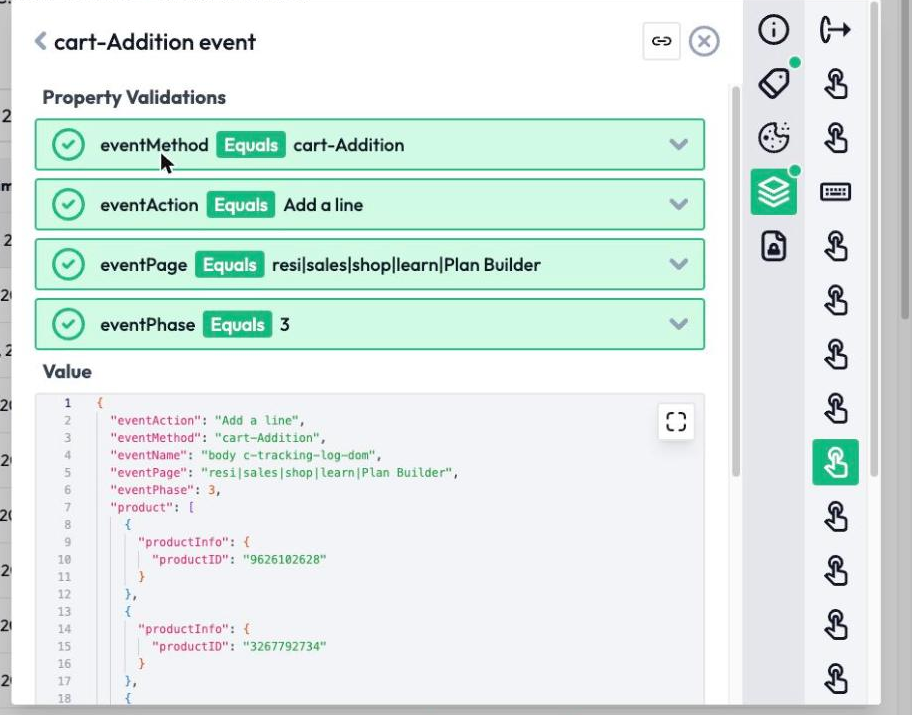
Using a data layer is best practice for controlling the data your tags use. But relying on one object means trouble if the data is unreliable or the layer breaks. DataTrue’s automated data layer testing sets up validation tests that quickly surface issues, confirming the correct data is in your data layer and being passed to your tags. For verifying the right tags fire on a data layer event, including edge cases, see data layer unit testing. Because a data layer underpins your reporting, it is also the foundation of data accuracy and data integrity, and it feeds your GA4 event tracking and GA4 ecommerce setup.
Check your data layer on your own site
DataTrue tests the values feeding your tags on your live site and apps, so you can confirm the data layer holds the right data in each consent state. See how it works on the web analytics testing page.
Questions
What is a data layer?
A data layer is a JavaScript object on a web page that collects, stores, and passes data in a standardised way, so your tags and analytics tools all read from one consistent source instead of scraping the page.
What does a data layer do?
It gives every tool on your site a single, structured source of data to draw from. That improves accuracy and flexibility, makes quality assurance easier, and stops a design change from silently breaking your tracking.
Do you need a data layer for Google Tag Manager?
Google’s instructions say to set up the data layer above the Tag Manager snippet. The snippet itself starts an empty dataLayer if none exists, but only your site can push custom values into it. Add your own data with dataLayer.push() and read it with data layer variables.
What is dataLayer.push()?
dataLayer.push() is the command that adds information to the data layer, both key/value data (such as pageType: "homepage") and custom events that tell your tags when to fire.
How do you test a data layer?
Preview and debug in GTM to check values and triggers, then use automated data layer testing to validate that the correct values sit in the data layer and reach your tags on an ongoing basis. See our data layer testing guide for the detail.
Know what your tags send, page by page
DataTrue runs real journeys on your site and checks each tag’s data against what you expect, field by field. A missing event or a wrong value shows up in a test before it reaches a report.
- Every page, with coverage scans
- Scheduled runs, with alerts when a result changes
- Full journeys, like checkout and signup, in each consent state
- What each tag sent, field by field
- PII detection with test personas
- iOS and Android app testing
- Pre-publish testing for GTM and Adobe Tags
- REST API, plus Slack and Jira alerts
The full platform, every feature, free for 30 days.