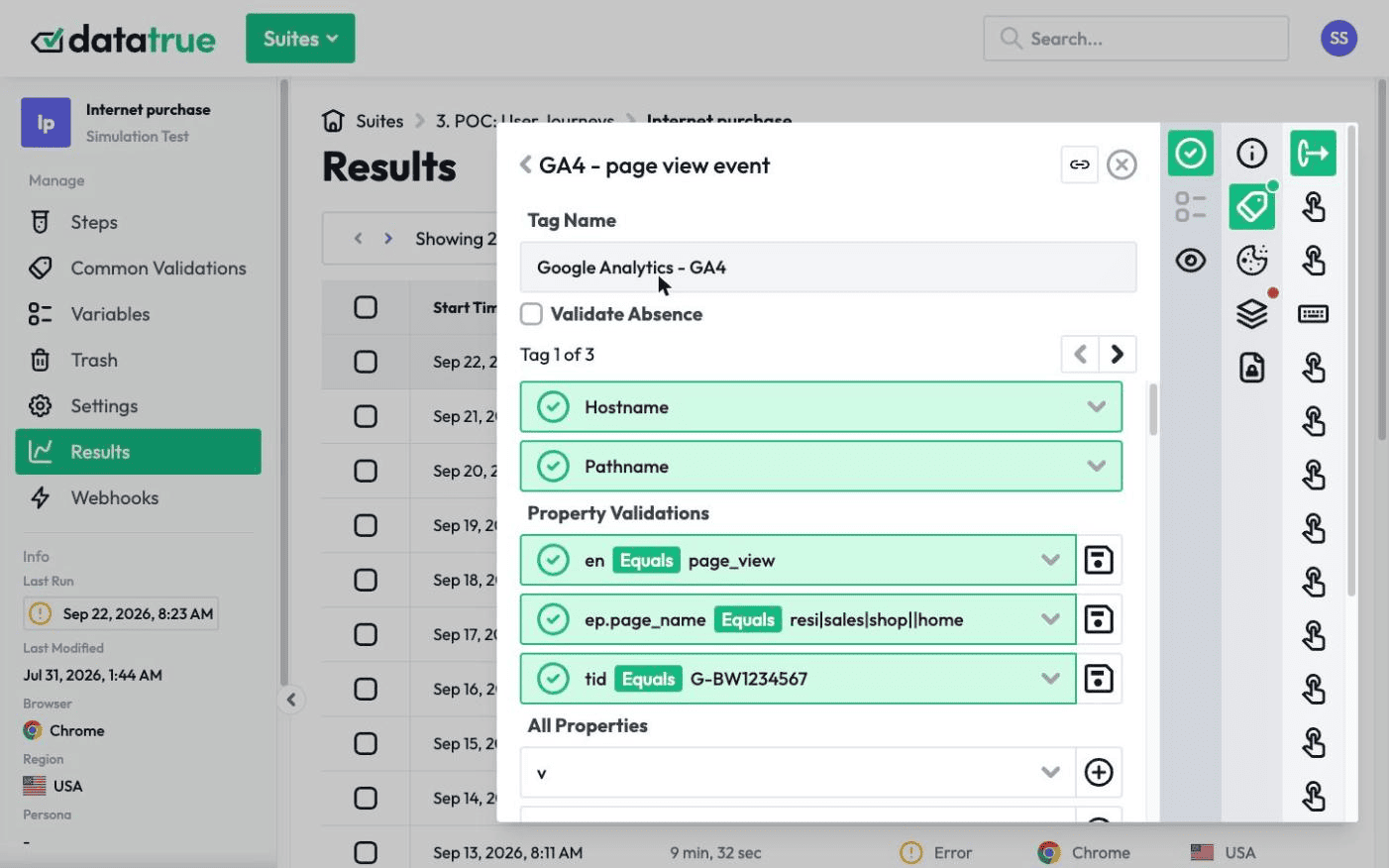
GA4 Ecommerce Tracking Setup with GTM
Summary
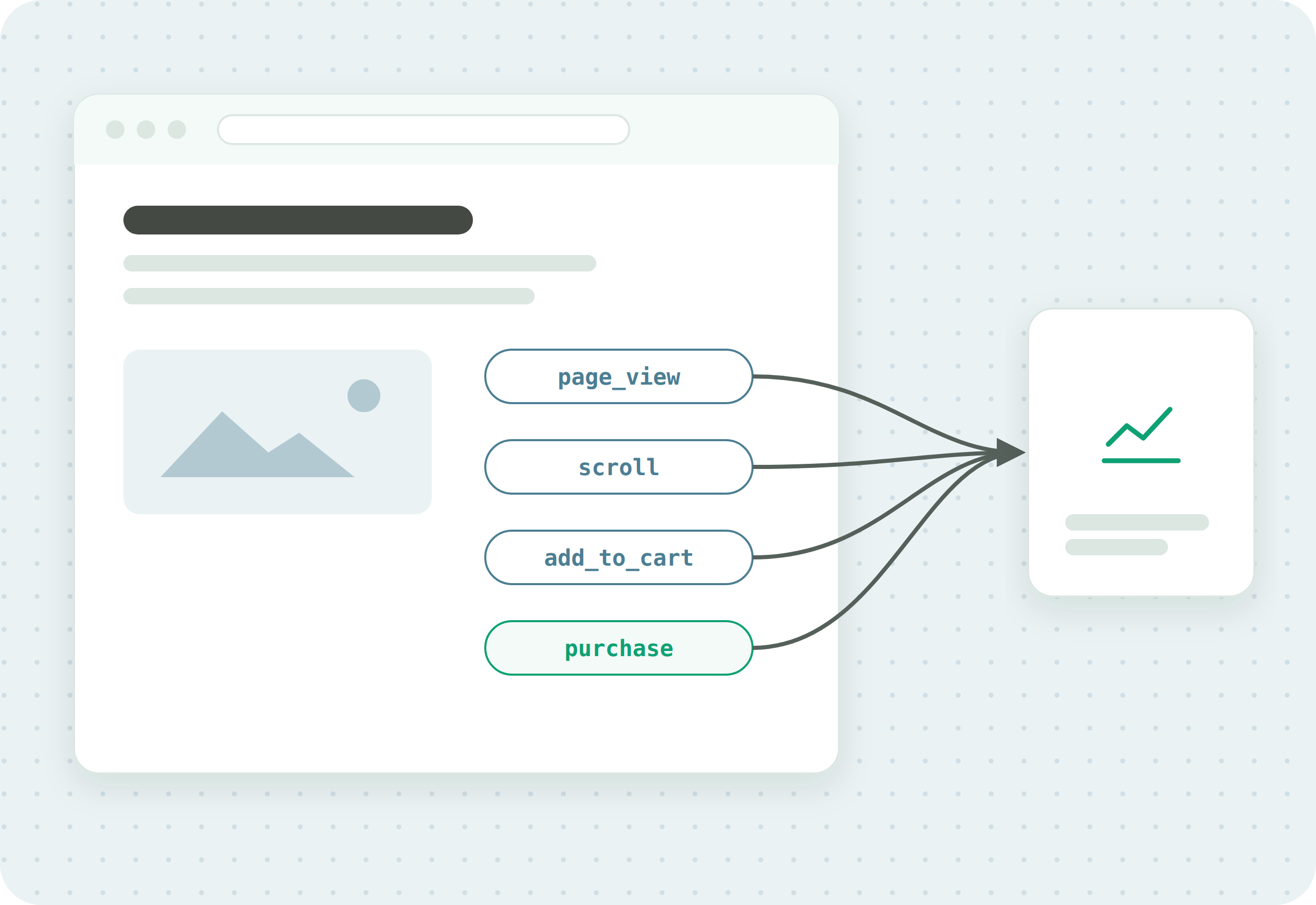
GA4 ecommerce tracking captures shopping actions, such as viewing a product, adding to cart, and completing a purchase, and sends them to Google Analytics 4. You set it up by pushing ecommerce data to the data layer and configuring GA4 events with the Google tag (gtag.js) or Google Tag Manager, then confirming each event fires with the right values.
Effective data tracking is critical for ecommerce sites. Understanding how users interact with your store can make the difference to securing sales, and integrating Google Tag Manager (GTM) and Google Analytics 4 (GA4) is central to keeping that data accurate. This guide walks through what you need to set up GTM and GA4 for an ecommerce site.
The sections below cover how ecommerce event tracking works, how to set it up, and which events and product data GA4 can track. They finish with the purchases report, ecommerce data and privacy, and how to confirm your events fire with the right values.
How does ecommerce event tracking work in GA4?
Tracking ecommerce events in GA4 is fundamentally similar to tracking other events. You set up tags or code to fire when specific events happen, then access the data in GA4.
GA4’s predecessor, Universal Analytics, used the Enhanced Ecommerce model for most ecommerce tracking. On July 1, 2023, standard Universal Analytics properties stopped processing data (360 properties had until July 1, 2024), which required the move to GA4. In GA4, ecommerce tracking is more integrated into overall event tracking, which makes it more flexible, and lets you get a fuller picture of what is happening on your site than UA did. Metrics and terminology also changed between UA and GA4, so it is worth checking Google’s comparison guide.
As with any GA4 setup, you can add GA4 code to your site manually, or use a tag-based solution like Google Tag Manager. This guide focuses on GTM. For the general event-tracking process, including setup without a data layer, see our GA4 event tracking guide.
How to set up GA4 ecommerce event tracking
This is the basic process with a data layer in use on your site.
- Create a GA4 event tag in your Google Tag Manager container.
- Configure the event tag with your parameters: enter a name in the left field and select the data layer variable with the relevant information in the right field.
- In the event tag, add a trigger. In the event name field, enter the data layer event you want to fire the tag.
- Click Preview and trigger the relevant events on your site. In the GTM preview pane, confirm the correct event data is captured and sent to GA4.
- Publish your changes.
- Test your changes after publishing, and on a regular, ongoing basis.
What types of ecommerce events does GA4 have?
There are four event types in GA4. Two are collected without extra code (automatically collected events, and enhanced measurement events when enhanced measurement is enabled), and two must be implemented (recommended events and custom events). Here are the ones most useful to ecommerce sites.
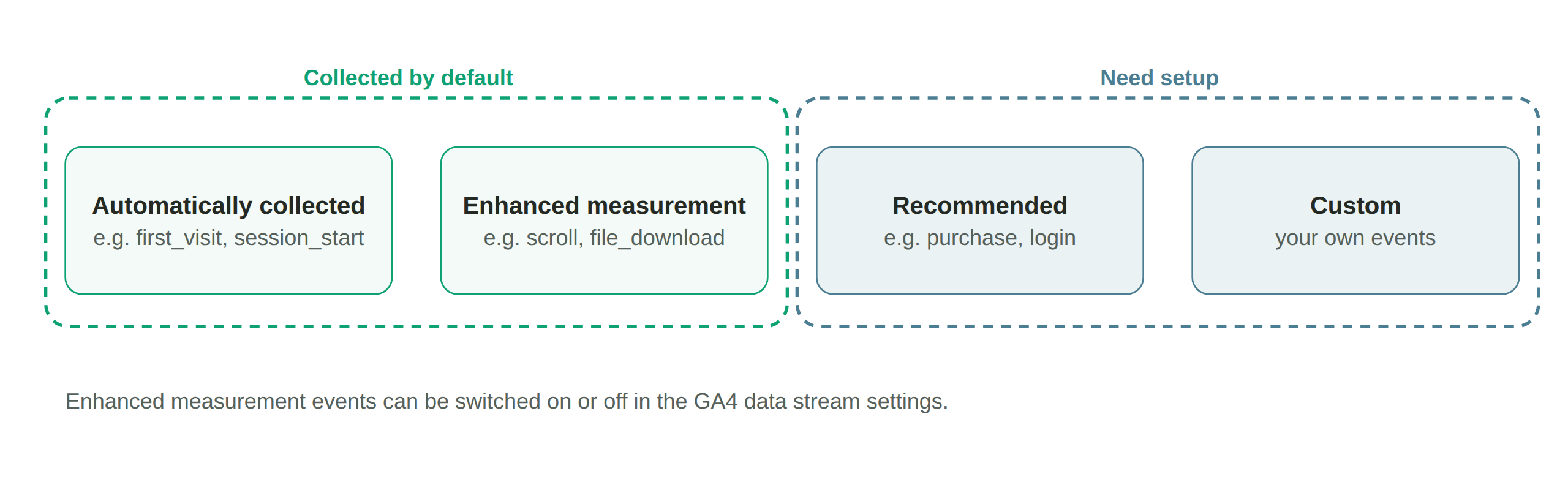
Automatically collected events. Tracked once the initial GA4 setup is done, with no extra steps, such as session_start, first_visit and user_engagement.
Enhanced measurement events. When enhanced measurement is enabled, GA4 also collects events such as page_view, scroll and view_search_results. The one ecommerce sites should watch is view_search_results, and you can optionally set site search to look for other URL query parameters.
Recommended ecommerce events. Commonplace events with predefined names and parameters, so they are relatively simple to implement, and where most ecommerce tracking happens. The ones likely to matter for an ecommerce site: login, purchase, refund, search, sign_up, add_payment_info, add_shipping_info, add_to_cart, add_to_wishlist, begin_checkout, remove_from_cart, select_item, select_promotion, view_cart, view_item, view_item_list, view_promotion.
Custom ecommerce events. For highly specialised needs you can create custom events, but this is more manual, because you provide your own parameters and triggers, and it is more prone to error, so it is best to rely on other event types where possible.
What product data can be tracked in GA4?
When setting up ecommerce tracking, you want data about the products customers buy, which shows your best sellers, popular categories, and how customers find particular products.
In GA4, product data is collected in a parameter called the items array. For an items array to function, one of these two parameters must be set:
item_id, for example SKU_12345item_name, for example Camo Hoodie
Other significant item parameters:
coupon: the name of a coupon associated with the itemdiscount: the per-unit monetary discount for the itemitem_brand: the brand of the itemitem_category: item categories such as “Apparel,” “Adult,” “Hoodies.” You can set up to fiveitem_categoryparameters, organised by hierarchyitem_list_id: the ID of the list the item appeared in, such as “related_products” (item_list_nameis the list’s name, such as “Related products”)price: the monetary unit price of the item
Beyond the required and recommended parameters, a standard GA4 property accepts up to 27 item-level custom parameters in an ecommerce event.
What are the key ecommerce events in GA4?
The most significant recommended ecommerce events, and how to track them:
- view_item_list. Fires when a user is shown a list of products, such as related items on a product page. Requires an items array, and can take
item_list_idanditem_list_name(not needed if set at the item level). - view_item. Fires when a customer sees content about an item, such as its detail page. Requires an items array. A
valueparameter (for example 25.00) is needed for useful reporting, and settingvaluerequires acurrencyparameter (for example AUD). - begin_checkout. Fires when a user starts checkout. Like
view_item, it needsvalueandcurrencyplus the items array. You can also set acouponparameter (item-level and event-level coupons are separate). - add_shipping_info. Indicates a user added shipping information at checkout. Needs
value,currency, and an items array, and can take acouponand ashipping_tier(the selected shipping form, such as air or next-day). - purchase and refund. Indicate a purchase or refund. Both use
currency,value,coupon,transaction_id(a unique transaction identifier, for example T_12345),shipping(the monetary shipping value, not to be confused withshipping_tier), andtax. Apurchaserequirestransaction_idand the items array. Arefundrequirestransaction_id, and its items array is optional: send it for a partial refund.
What is the GA4 ecommerce purchases report?
Once ecommerce events are being sent, you can access a premade ecommerce purchases report, a good starting point for GA4 ecommerce.
It includes these dimensions: item brand (from item_brand), item category (the first hierarchical category, from item_category), item category 2 to 5 (from item_category2 and up), item ID (from item_id), and item name (from item_name).
And these metrics: item revenue (total revenue from items, excluding tax and shipping), items added to cart (from the items array in an add_to_cart event), items purchased (from the items array in a purchase event), and items viewed (from the items array in a view_item event).
GA4 ecommerce data and privacy
An ecommerce site handles personally identifiable information (PII), such as names, email addresses and card details. Google’s own policies prohibit sending PII, such as email addresses or phone numbers, to Google Analytics, so ecommerce and event tracking has to be set up to keep it out. Whether a given setup is compliant with the GDPR, the CCPA, or other laws depends on the data involved, your configuration, and the jurisdiction, which is a compliance question. For that, see the Privacy & Compliance resources.
Improve your ecommerce reporting with DataTrue
Optimising a GA4 ecommerce setup takes work, and you want to be sure you are collecting the best possible data. DataTrue’s data layer testing confirms this part of your setup is working, and its tag audit tools check the overall health of your tags with simulation tests, coverage tests, and validation maps. To understand the accuracy and integrity that ecommerce reporting depends on, see data accuracy and data integrity, and to check the tags themselves, the tag audit guide.
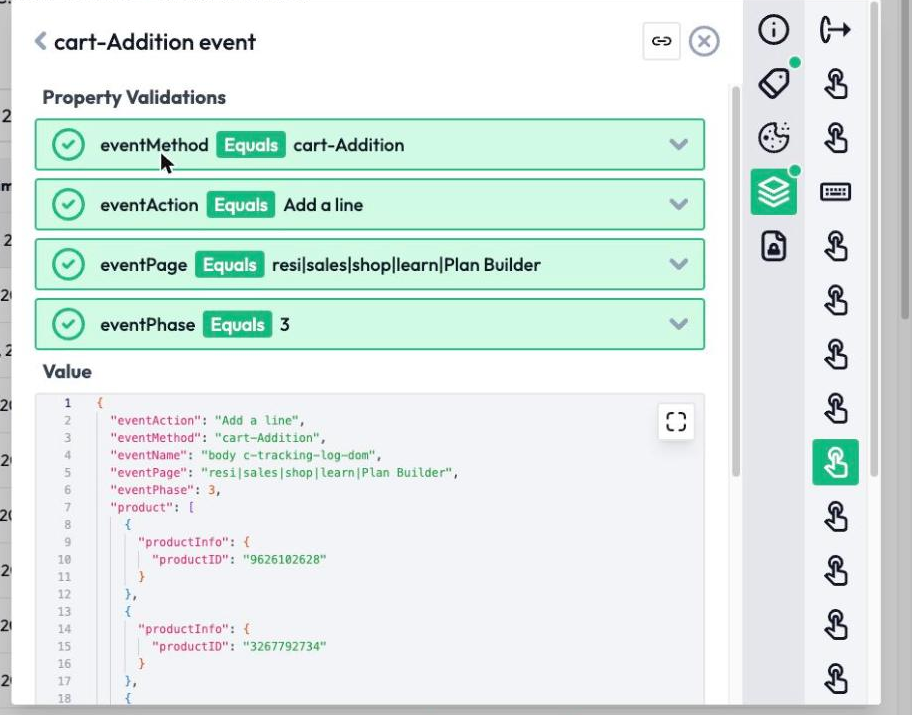
Confirm your ecommerce events fire with the right values
DataTrue tests your ecommerce journey step by step on your live site, checking each event fires with the right values, in each consent state. See how it works on the web analytics testing page.
Questions
What is GA4 ecommerce tracking?
GA4 ecommerce tracking captures shopping actions, such as viewing a product, adding to cart, and purchasing, and sends them to Google Analytics 4. You push ecommerce data to the data layer and configure GA4 events with the Google tag (gtag.js) or Google Tag Manager, then confirm each event fires with the right values.
What events does GA4 ecommerce tracking use?
Mostly recommended events with predefined names, such as view_item, view_item_list, add_to_cart, begin_checkout, add_shipping_info, purchase, and refund, most carrying an items array, plus parameters like value, currency, and transaction_id.
Do you need Google Tag Manager for GA4 ecommerce tracking?
No. You can send GA4 events with the Google tag (gtag.js) or with Google Tag Manager. Tag Manager is a popular approach because it lets you configure ecommerce event tags, parameters, and triggers, and read from the data layer, without editing site code each time.
What is the items array in GA4?
The items array is the parameter that carries product data on an ecommerce event. It needs at least item_id or item_name, and can hold parameters like price, item_brand, item_category, and coupon, plus, in a standard property, up to 27 item-level custom parameters.
How do you know your GA4 ecommerce tracking is working?
Preview in GTM and trigger each event, confirm the values in GA4’s Realtime and DebugView reports, then use automated testing to walk the full purchase journey and check each event fires with the right values on an ongoing basis.
Know what your tags send, page by page
DataTrue runs real journeys on your site and checks each tag’s data against what you expect, field by field. A missing event or a wrong value shows up in a test before it reaches a report.
- Every page, with coverage scans
- Scheduled runs, with alerts when a result changes
- Full journeys, like checkout and signup, in each consent state
- What each tag sent, field by field
- PII detection with test personas
- iOS and Android app testing
- Pre-publish testing for GTM and Adobe Tags
- REST API, plus Slack and Jira alerts
The full platform, every feature, free for 30 days.